Move Selected Items
If you have access to at least one item bank and also have access to a Development Collection, there may be circumstances in which you decide the item belongs in a different Collection than its current location.
To make such changes, first select the item(s) you want to move by checking the  box beside each one. Note: checkboxes are available in each of the views (Table, List, Gallery, and Slide) although they are in slightly different locations in the views. Next, select Move Selected Items in the Actions drop down menu. The window below will appear and its drop down menu will offer choices of different Collections to which you may move the item(s).
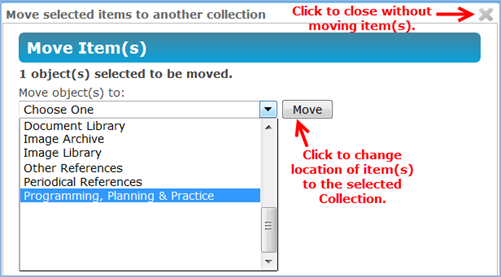
If you accidentally move an item to a new location, or move it to the wrong location, it may be hard to find the item later. When you move an item to a different Collection, it is deleted from the original location. After you click  , you'll be asked to verify that you intend to make the move. Note: if you later realize that you moved the item to the wrong Collection, you can search for it and move it again--the only problem is that it may be a challenge to locate where you put it.
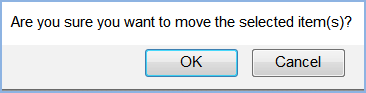 If you click OK, the selected items will be moved to the new Collection location. You'll see a confirmation message about the move, and will also have the chance to edit the item(s) at this time.
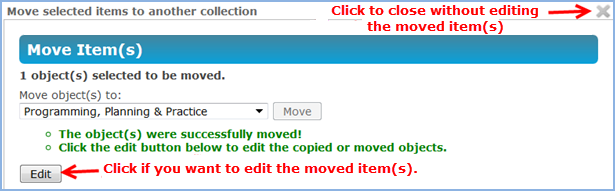 Three things to know about moving items:
- The CDS Alpine 4.03 ID will remain unless/until a new section/objective in BD is chosen. The Alpine 4.03 ID won’t change until the section/objective is edited and saved. Then the item would receive a new Alpine 4.03, starting with BD.section.objective, etc.
- Moving items around won’t affect any items on forms. There is a lower-level object ID that links items to forms, so it could be moved to any division with any Alpine ID and it will remain in any forms it was in. However, it may confuse anyone with printed lists of IDs of the forms, etc., so confirm with others regarding when to re-assign to a new section/objective and change the Alpine 4.03 ID.
- You’ll still see the item you just moved in your search result – and you can still edit it and the edits will be saved, but it won’t return again in your next search. If you search for it in the Collection to which you moved it, you will see it there with any new edits you made.